Performance Guide: Stuttering, Crashes and Fixes
Published 2026-09-19Updated 2026-09-218 min read
Practical fixes for RuneScape: Dragonwilds performance problems — system requirements, settings that matter, and stability troubleshooting for PC and console.
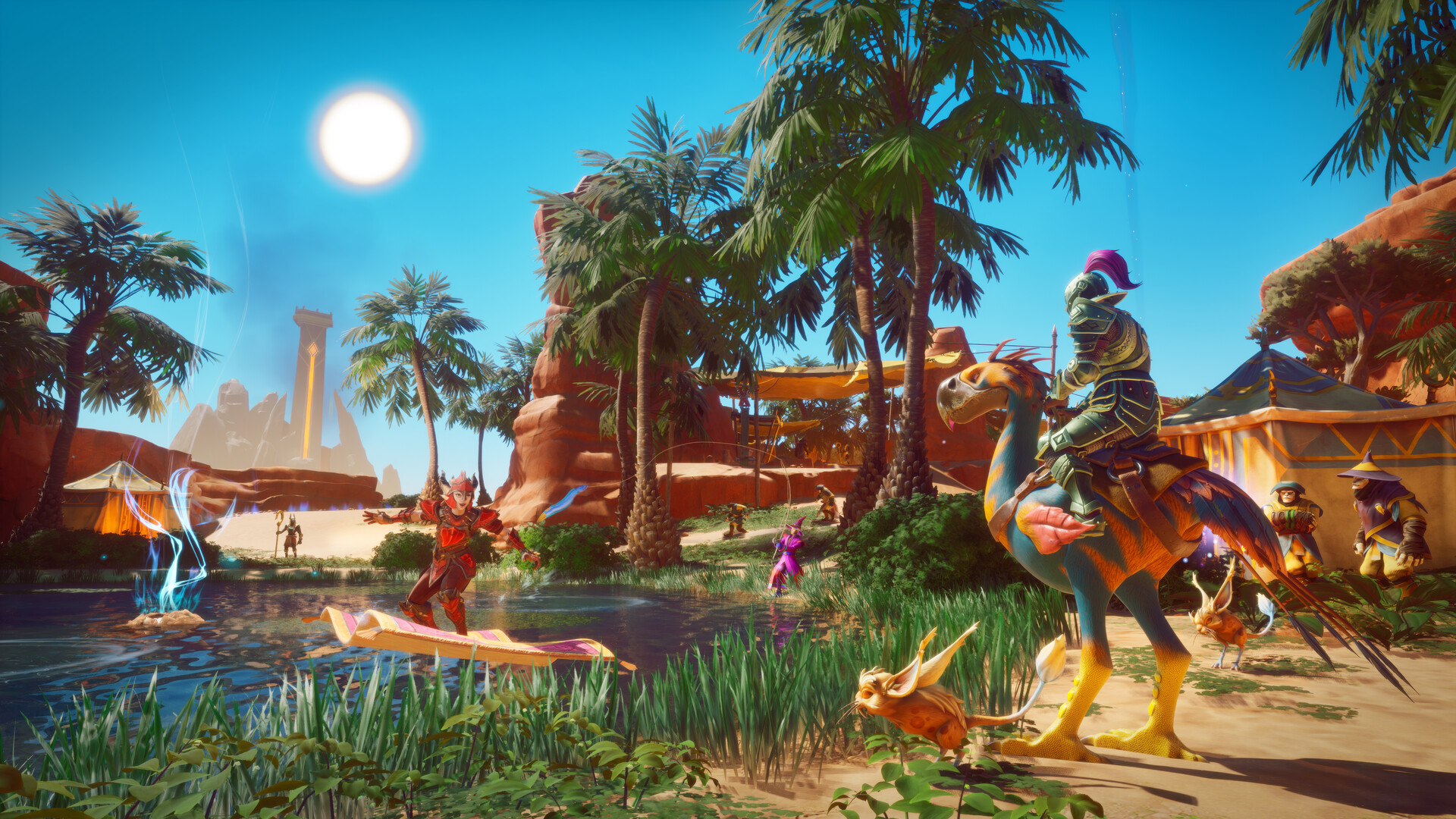
RuneScape: Dragonwilds runs on Unreal Engine 5, and its lush open world asks more from hardware than most survival games. If your expedition stutters every time a dragon crosses the sky, or crashes creep in during long sessions, work through this checklist — most problems fall to one of the fixes below.
Know the baseline requirements
Jagex's own guidance for the PC version calls for a DirectX 11 or 12 capable GPU, 16 GB of RAM, and an 8-core (or higher) CPU to run Unreal Engine 5.6 comfortably. Machines below that line can still play, but expect compromises: lower presets, reduced draw distance, and occasional traversal hitching. If your system has 8 GB of RAM, no settings menu will fully save you — closing memory-hungry background apps is the single biggest lever.
Settings that actually matter
From highest impact to lowest, these are the knobs worth turning before you touch anything else:
- Overall preset — drop one full tier first (High to Medium, Medium to Low) and retest before micro-tuning.
- View distance / LOD — the biggest cause of hitching while riding across open country; pulling it in removes most traversal stutter.
- Shadows — UE5 shadow quality is expensive; medium shadows look nearly identical and run far cooler.
- Volumetrics and fog — Fellhollow's mist and the desert's heat haze are GPU-heavy; reducing them helps most in exactly the regions that need fps most.
- Resolution scaling — a 75–90% render scale with a clean temporal upscaler usually looks better than lowered presets at native resolution.
Full-screen exclusive mode, capped fps (60 or the refresh rate of a stable multiple), and disabled unnecessary overlays (capture apps, RGB suites, launcher overlays) round out the standard cleanup.
If the game stutters every few seconds
Rhythmic stutter usually means one of three culprits:
- Background processes — browsers, launchers, sync clients and antivirus scans eating CPU in cycles. Close what you do not need; whitelist the game folder in your antivirus.
- Asset streaming thrash — the game loads zones as you move. An SSD (internal, not a slow external drive) eliminates the majority of streaming hitches; installing on a hard disk is the most common self-inflicted wound.
- Shader compilation — the first minutes after a driver or game update can stutter while shaders rebuild. Let it settle once; it should not recur every session.
If the game crashes
- Verify game files — Steam's "Verify integrity of game files" (Properties → Installed Files) repairs corrupted downloads, the top cause of repeat crashes.
- Update your GPU drivers — clean-install the latest driver from NVIDIA, AMD or Intel; UE5 titles are sensitive to old drivers.
- Keep the OS current — several stability patches have shipped through Windows Update; an outdated system can undermine an up-to-date game.
- Lower overclocks — an "stable" CPU/GPU overclock that survives shooters may fold under UE5's load spikes; test at stock.
- Check RAM headroom — with 16 GB, close memory-heavy apps; with 32 GB, you should never see memory-related crashes.
Console notes
PlayStation 5 and Xbox Series X|S versions arrived with 1.0 and run fixed profiles, so console troubleshooting is simpler: keep the console's system software current, ensure adequate ventilation (a hot console throttles), and if a specific save misbehaves, back up and reload before assuming a bug. Performance or crash reports that persist across a fresh save are worth reporting through official support channels with your region and platform noted.
When the problem is a patch
Big updates occasionally destabilize specific configurations for a day or two. Before rolling back drivers or reinstalling anything drastic, check the game's official channels and community hubs — if a hotfix is coming, you will find other players describing your exact symptoms. Reinstalling the game from scratch resolves stubborn client states, but it is the last resort, not the first.
A stable setup checklist
- Game on an SSD, OS drive healthy with free space
- GPU driver updated within the last few months
- 16 GB RAM minimum, background apps trimmed
- Preset one tier below "it should handle it"
- Overlays and capture tools disabled
- Files verified after every large patch
Related guides
- New to the game entirely? Beginner's Guide: Getting Started
- Playing with friends across platforms: Co-op & Cross-play Guide
- What 1.0 changed on each platform: 1.0 Launch Overview
Reading the stutters: a quick diagnosis
The pattern of a performance problem usually names its cause. Stutter every few seconds, rhythmically: background process or a failing drive — check task manager and disk health. Stutter when crossing zone borders: asset streaming — install on the SSD and trim view distance. Stutter in exactly one region: volumetric load — that region's fog settings are your fix. Stutter after every driver or patch day: shader compilation — let one session settle. Stutter only in fights: CPU draw-call pressure — drop shadows and particle quality rather than resolution. Matching the symptom to the fix saves an hour of blind slider-pulling for every problem it solves.